
Trust center best practices: what to include and what to gate
A trust center works when a reviewer can answer their own questions without emailing you, and when the things you cannot publish openly are still one short request away. That balance — what goes on the public page, what sits behind an NDA, and who keeps both current — is most of the work. This guide sets out the content most B2B trust centers carry, the access posture usually applied to each artefact, and the maintenance habits that stop a good page going stale six months after launch.
1. What a trust center is and is not
A trust center is a publishing and access-control layer over evidence that already exists. It changes how that evidence reaches a reviewer; it does not change what the evidence says or how strong the underlying controls are. Keeping that distinction straight is what keeps the page credible.
What it is
- A disclosure surface for evidence you already hold: audit reports, certificates, policies, the DPA, the subprocessor list, pen-test output.
- A place to publish plain statements — hosting regions, encryption, retention, notification commitments — so the same answer is not retyped per deal.
- An access-control layer: some artefacts open, some released per request, with a record of who received what and when.
- A single URL sales can send with a proposal instead of promising a security pack later.
What it is not
- Not an audit or a certification. Publishing a report does not extend its scope, and hosting one does not validate its contents.
- Not a control. A page describing encryption does not encrypt anything — the underlying practice has to exist independently.
- Not a GRC platform. Control monitoring, evidence collection, risk registers and policy authoring are separate jobs, often separate tools.
- Not a replacement for every questionnaire. It removes the repetitive parts; contractual, industry-specific and bespoke questions still get answered by a human.
2. Minimum viable public layer
If you publish nothing else, publish these. Each one removes a question that otherwise arrives by email or inside a questionnaire, and none of them requires an audit report to exist first.
A short posture summary in plain language
Two or three paragraphs on what the product does with customer data and how it is protected. Reviewers read this first to calibrate how deep to go.
Certification status with scope and period
Which report or certificate you hold, who issued it, what systems it covers, and the period it covers. A badge without scope invites a follow-up question.
Hosting locations and data-residency options
Region matters for privacy reviews and sometimes for procurement policy. State the actual regions rather than the cloud provider alone.
A current subprocessor list
Name, purpose, and processing location per subprocessor, with a last-updated date. Privacy teams check this before they read anything else.
A named security contact
A monitored address such as security@ — reviewers and researchers both need one route in that does not depend on finding the right salesperson.
A vulnerability reporting route
Where to send a finding and what to expect back. ISO/IEC 29147 covers the disclosure process if you want a reference model.
Links to the privacy notice and DPA
Both are usually public documents already. Putting them on the trust center saves a round trip during legal review.
Primary sources: ISO/IEC 29147:2018 — Vulnerability disclosure
3. Documents commonly kept public
These are the artefacts most teams publish openly. They are written for external readers, and gating them tends to cost more in friction than it gains in control.
| Document | Why it works as an open download |
|---|---|
| ISO 27001 certificate | The certificate itself carries the certification body, scope statement and validity dates. It is designed to be shown. |
| Penetration test summary letter | A one-page attestation from the testing firm — dates, scope, methodology, and confirmation that findings were remediated — without the finding detail. |
| DPA template | The processor terms a customer will sign. Publishing the template lets legal review it before the deal reaches contracting. |
| Privacy notice and sub-processor list | Already public obligations in most cases. Keep the subprocessor list in a page a reader can link to, not only inside a PDF. |
| Security overview or whitepaper | Encryption, authentication options, access model, logging, backup approach. Written for a reviewer skimming, not for an auditor. |
| BCP/DR summary and status page | A summary of continuity arrangements plus recovery objectives. The full plan is usually gated; the summary rarely needs to be. |
| Vulnerability disclosure policy | Scope, contact route, and response expectations. Public by design — the audience includes people who are not customers. |
4. Documents commonly gated or restricted
Two different reasons drive gating: the document is restricted-use by design, or it contains detail that helps an attacker. Both justify a request step; neither justifies gating the whole page.
| Document | Why it is usually gated |
|---|---|
| SOC 2 report (Type 1 or Type 2) | AICPA SOC 2 reports are restricted-use documents intended for specified parties, which is why they are normally released under an NDA rather than published. |
| Bridge or gap letter | Covers the window between the end of the audit period and today. Same restricted treatment as the report it accompanies. |
| Full penetration test report | Contains exploitable detail about your architecture. Release the summary letter openly and the full report per request. |
| ISO 27001 Statement of Applicability | Reveals which controls are in scope and how they are implemented. Certificate public, SoA gated is a common split. |
| Architecture and network diagrams | Useful to a serious reviewer, equally useful to an attacker. Gate these and expire access. |
| Internal policy set | Access control, incident response, secure development, vendor management. Often shared as a pack under NDA during deeper reviews. |
| Risk assessment and remediation tracker | Rarely needed and rarely shared, but ask-for-it-and-you-get-it beats a flat refusal in a regulated review. |
| Cyber insurance certificate | Confirms coverage exists without disclosing premium or claims detail. Some teams publish a redacted certificate openly; gating it is also defensible, especially if it lists specific policy numbers. |
Primary sources: AICPA — SOC 2 (SOC for Service Organizations: Trust Services Criteria)
5. Certifications and audit information
Scope is what a reviewer actually cares about. A badge tells them an audit happened somewhere; the scope statement tells them whether it covers the product they are buying. State both, in these terms:
- Report or certificate type — SOC 2 Type 1 and Type 2 are different products; so are an ISO 27001 certificate and its Statement of Applicability.
- Issuer — the audit firm or the accredited certification body, named. "Independently audited" without a name is not verifiable.
- Scope — the systems, services and locations covered. A certificate covering one product line does not cover the others.
- Period or validity — the audit period for a Type 2 report, the certificate issue and expiry dates for ISO.
- Trust services criteria included — Security is mandatory in SOC 2; Availability, Confidentiality, Processing Integrity and Privacy are optional additions.
- Current status where an audit is in progress — say "observation period in progress, report expected in Q4" rather than implying the report exists.
Wording that survives scrutiny
Avoid: "SOC 2 certified"
Use: "SOC 2 Type 2 report available under NDA, covering [scope] for the period [dates], issued by [firm]" — SOC 2 is an attestation, not a certification.
Avoid: "ISO certified"
Use: "ISO/IEC 27001:2022 certified by [body], certificate [number], valid until [date], covering [scope]".
Avoid: "GDPR compliant"
Use: "We act as processor under Article 28 terms in our DPA, maintain records of processing, and transfer data using [mechanism]" — describe the arrangement, not a verdict.
Avoid: "Bank-grade" or "military-grade" encryption
Use: The actual primitives: TLS 1.2+ in transit, AES-256 at rest, and how keys are managed.
Primary sources: AICPA — SOC 2 (SOC for Service Organizations: Trust Services Criteria) · ISO/IEC 27001:2022 — Information security management systems
6. Privacy, DPA, subprocessors and data residency
Privacy reviewers work from a short list, and they check it in roughly this order. Nothing here is legal advice — the primary instruments are linked so you can read the requirement rather than a paraphrase of it.
Processor terms (GDPR Article 28)
Where you process personal data on a customer's behalf, Article 28 sets out what the contract must contain — including the requirement for the controller's authorisation before engaging another processor. Publish the DPA template that carries those terms so legal can read it early.
Records of processing (Article 30)
Article 30 obliges controllers and processors to maintain records of processing activities. A trust center does not replace that record, but a public processing summary — categories of data, purposes, retention — is usually drawn from it and answers the same questions faster.
Subprocessor list and change notice
Keep the list on a page with a last-updated date, name each entity with its purpose and processing location, and state how much notice customers get before a new subprocessor starts processing. Notice periods live in the DPA; the list is where people check.
International transfer mechanism
Say which mechanism you rely on: an adequacy decision, the European Commission's 2021 Standard Contractual Clauses, or the UK IDTA / Addendum for UK transfers. Name it explicitly — "data may be transferred internationally" is not an answer a privacy reviewer can accept.
Residency options
State the regions available, whether region is chosen at provisioning or can be changed later, and which components (backups, logs, support tooling, model inference) stay in region. Partial residency stated honestly beats a blanket claim.
Retention and deletion
Retention period per data category, what happens on termination, the deletion timeline, and whether backups are covered by it. If deletion from backups follows the backup rotation rather than the request, say so.
Primary sources: GDPR Article 28 — Processor (EUR-Lex) · GDPR Article 30 — Records of processing activities (EUR-Lex) · European Commission — Standard Contractual Clauses for international transfers · ICO — International Data Transfer Agreement and Addendum
7. Incident response, BCP/DR and vulnerability disclosure
This is where reviewers look for evidence that you have thought past prevention. Keep every commitment on the page consistent with the one in your contract.
Incident response
Describe the lifecycle you actually run — detection, triage, containment, eradication, recovery, post-incident review — and who is accountable at each step. NIST SP 800-61 is the usual reference model if you need one to align to. Then state your customer-notification commitment and make sure it matches the DPA, because that is the version that binds you.
Business continuity and disaster recovery
Publish recovery objectives (RPO and RTO), backup frequency and retention, whether restores are tested and how often, and what a regional failure means for availability. Objectives you have tested are worth stating; objectives you have not are worth labelling as targets.
Vulnerability disclosure
Give researchers a route in: an address, the scope of systems in play, what you commit to on acknowledgement and remediation, and whether you operate a safe-harbour statement. ISO/IEC 29147 covers the process end to end. A reachable route is also a signal to customers that reports get handled rather than lost.
Status and history
A status page with incident history is one of the few places a customer can see how you behave under pressure. Linking it from the trust center is a stronger signal than a paragraph claiming high availability.
Primary sources: NIST SP 800-61 — Computer Security Incident Handling Guide · ISO/IEC 29147:2018 — Vulnerability disclosure
8. Access-control and NDA decision matrix
A default posture per document class removes the per-deal debate. Adjust it for your industry — regulated customers may need more gating, and some teams publish more than this — but start from a written default rather than deciding each time.
| Document class | Default access | Gate | Expiry | Reasoning |
|---|---|---|---|---|
| Certificates, summary letters, DPA, privacy notice | Open download | None | None | Designed to be shown. Gating them adds friction without protecting anything. |
| Security overview, BCP/DR summary, subprocessor list | Open page or download | None | None | These answer the questions that otherwise arrive as a questionnaire. |
| SOC 2 report, bridge letter | Request required | NDA | Short-lived link | Restricted-use documents intended for specified parties, so identity and terms come before the file. |
| Full pen-test report, architecture diagrams | Request required | NDA | Short-lived link | Contains exploitable detail. Expire access rather than leaving a permanent copy in circulation. |
| Policy pack, SoA | Request required | NDA, sometimes named-reviewer only | Short-lived link | Useful in deeper reviews, unnecessary in most. Release on demand instead of publishing. |
| Anything containing customer names or data | Do not share | n/a | n/a | Redact or refuse. A trust center is not the place to resolve a confidentiality conflict. |
How this maps to VendorLens
- Per-document access rules — open, or request-and-approve. NDA-gated documents: ✓ All plans.
- Time-limited signed download links, so an approved request does not become permanent access.
- Watermarking on PDF downloads with the requester's details, which discourages onward forwarding.
- An access record showing who requested what, when it was approved and when it was downloaded. Audit logs: ✓ All plans.
- Publishing on your own domain rather than a vendor subdomain. Custom domain: ✓ Pro plan.
9. Ownership, review cadence and document freshness
Most trust centers are accurate on launch day. Whether they are accurate a year later comes down to whether one person owns them and whether each artefact has a trigger that forces a check.
| Artefact | Update trigger | Cadence |
|---|---|---|
| SOC 2 report | End of each audit period | Replace annually; add a bridge letter to cover the gap until the next report is issued. |
| ISO 27001 certificate | Surveillance audit or expiry date | Check validity quarterly; replace on reissue. Never leave an expired certificate on the page. |
| Penetration test summary | Each test | Replace after every test. State the test date so a reader can judge freshness themselves. |
| Subprocessor list | Any change | Update on change, not on a schedule, and keep the last-updated date visible. |
| DPA and privacy notice | Terms change or new transfer mechanism | Review twice a year and whenever the underlying legal instrument changes. |
| Security overview and policy statements | Product or infrastructure change | Review quarterly. Most drift happens here, because nothing expires to force a check. |
| Access log review | Ongoing | Skim monthly. Repeated requests for the same gated document usually mean it should be open. |
- One named owner, not a team inbox. Someone has to be accountable for the page being right this quarter.
- A deputy who can approve access requests when the owner is away, so a request does not sit for a week.
- A calendar entry for the quarterly review, with the cadence table above as the agenda.
- A rule that any change to hosting, subprocessors or retention triggers a trust-center update in the same change.
10. Common mistakes
Trying to polish every policy before publishing anything
Waiting for a perfect information-security policy delays the whole launch, and customers do not need Pulitzer-worthy prose — they need accurate, current, and findable answers.
Instead: Publish what you have now, mark it with a date, and iterate as customer questions surface gaps.
Gating everything behind a form or an NDA
A reviewer who cannot see a certificate without signing something treats the page as a lead-capture form. The questions come back as a questionnaire anyway.
Instead: Publish what is designed to be shown and reserve gating for restricted-use documents.
Leaving stale artefacts up
An expired certificate or a two-year-old pen-test summary is worse than an absent one: it suggests nobody is looking after the page.
Instead: Show the date on every artefact and remove anything you would not want a reviewer to date-check.
Unsupported compliance claims
"SOC 2 certified" and a bare "GDPR compliant" are both checkable, and a reviewer who catches one starts re-reading everything else.
Instead: State the report type, issuer, scope and period, and describe your privacy arrangement rather than asserting a verdict.
No named owner
Trust centers rot quietly. Without an owner, the first thing to go out of date is usually the subprocessor list — the one privacy teams check.
Instead: Assign one owner and one deputy, and put the review in a calendar.
Subprocessor information only inside a PDF
Privacy teams want a linkable, dated list they can diff against last quarter. A PDF makes that harder than it needs to be.
Instead: Keep the list as page content with a last-updated date; attach the PDF if you also need a signed version.
No route in for questions or findings
If the only contact is a sales form, security questions get triaged as leads and researcher reports get lost.
Instead: Publish a monitored security address and a disclosure route with response expectations.
Copying another company's trust center wholesale
Their scope, certifications and residency are not yours. Copied claims are the fastest way to end up with something you cannot evidence.
Instead: Use other pages for structure, and write every claim from your own documents.
11. Downloadable one-page checklist
Everything above condensed to one printable page. If you want the longer version with customer-experience and launch steps, the detailed trust center checklist covers those too.
Public layer
- Plain-language posture summary
- Certification status with issuer, scope and period
- Hosting regions and residency options
- Dated subprocessor list as page content
- Monitored security contact address
- Vulnerability disclosure route
- Privacy notice and DPA template
Gated layer
- SOC 2 report and bridge letter behind an NDA
- Full pen-test report and architecture diagrams behind an NDA
- Policy pack and SoA released on request
- Time-limited links on every approved request
- Watermarking on downloaded PDFs
Operations
- One named owner and one deputy
- Quarterly content review in the calendar
- Date shown on every artefact
- Access log reviewed monthly
- Trust-center update included in infrastructure and subprocessor changes
12. Examples from a live trust center
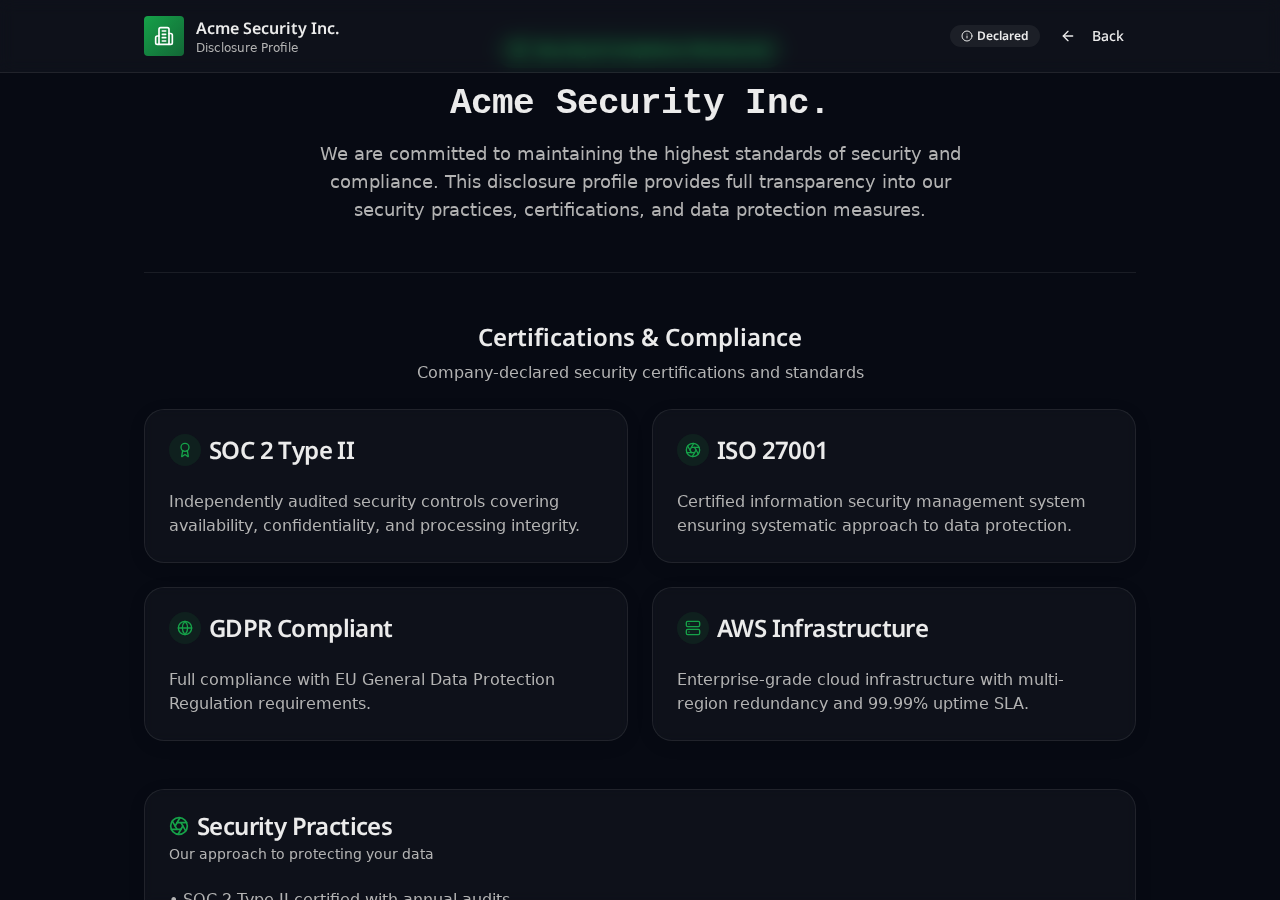
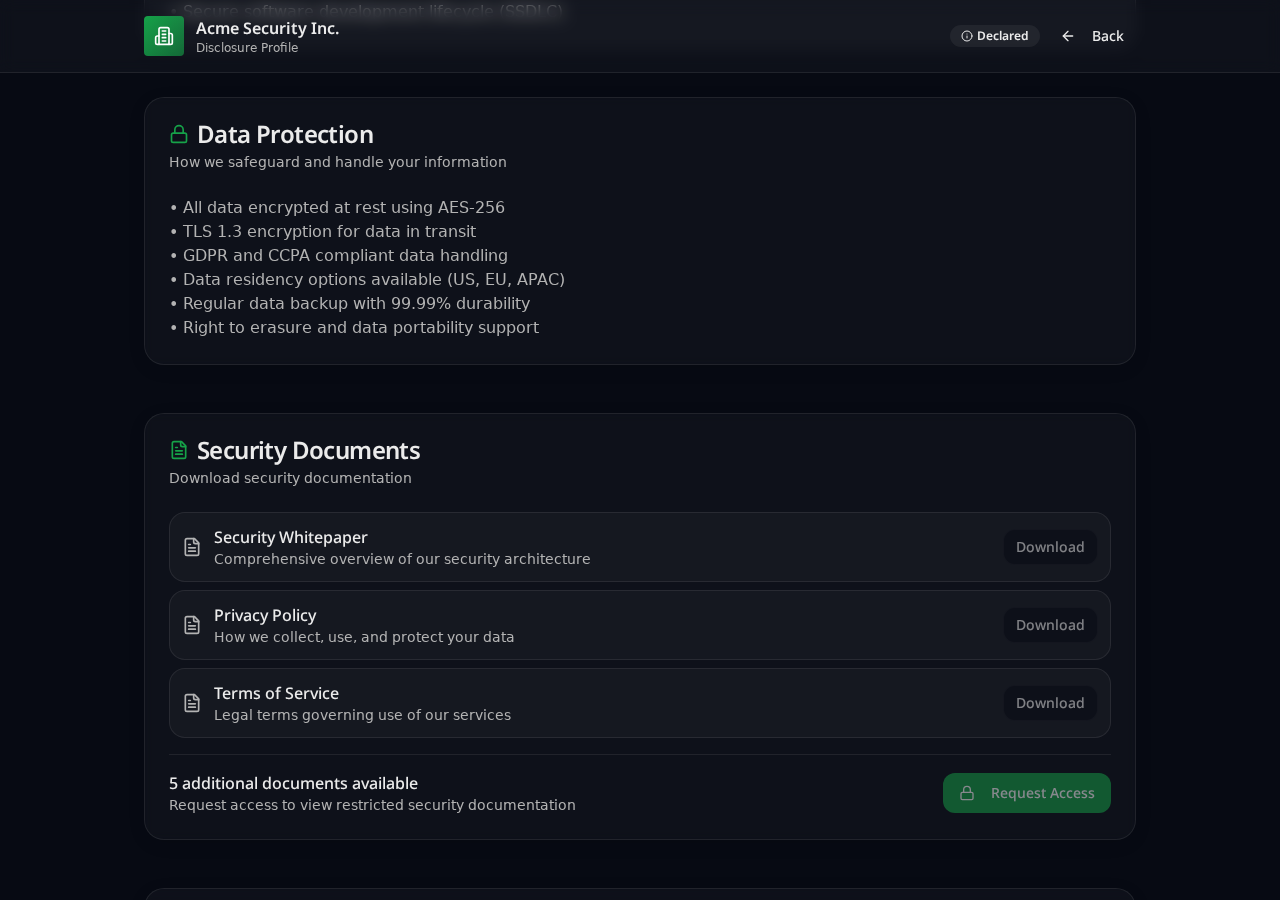
Both screenshots come from the VendorLens demo portal. They show one team's choices, not a universal requirement — your certification set, document list and access posture will differ.
Publish this structure on your own domain
Open artefacts public, restricted reports behind an NDA request, one page to keep current.
Frequently asked questions
Do I need a SOC 2 report before building a trust center?
No. A trust center is a place to publish what you have. If that is a security overview, a subprocessor list, a DPA and a pen-test summary, that already answers a large share of what a mid-market customer asks. Add the report to the gated layer when you have one.
Should the SOC 2 report ever be a public download?
It is normally not. SOC 2 reports are restricted-use documents intended for specified parties, which is why the standard pattern is a public statement that the report exists, plus release under an NDA on request.
How much should sit behind the gate?
Less than most teams assume. If a reviewer keeps requesting the same document and you keep approving it, the gate is only adding delay — move it to the open layer. Reserve gating for restricted-use and exploitable material.
How often should the page be reviewed?
Quarterly for written statements, on change for the subprocessor list, and on issue for every certificate and report. The cadence table above is the version worth putting in a calendar.
Does a trust center remove security questionnaires?
It removes the repetitive parts. Contractual, industry-specific and bespoke questions still need a human answer — the balance of what a portal can and cannot absorb is covered in our questionnaire guide.
What does this cost with VendorLens?
The Community plan is free and covers a branded trust page with NDA-gated documents. Pro is $99/month and adds a custom domain, branding and integrations; Business is $299/month. Full details are on the pricing page.